
Test and publish a chatbot
Before a chatbot talks to anyone, try it yourself. The test runs the same chatbot your customers will meet — the same words, the same buttons, the same decisions — without sending anything or charging you.
Test it
Click Test at the top of the canvas. A phone opens on the right. Send it a message that starts your chatbot — "hi", if that's in "Starts when" — and tap the buttons and answer the questions as a customer would.
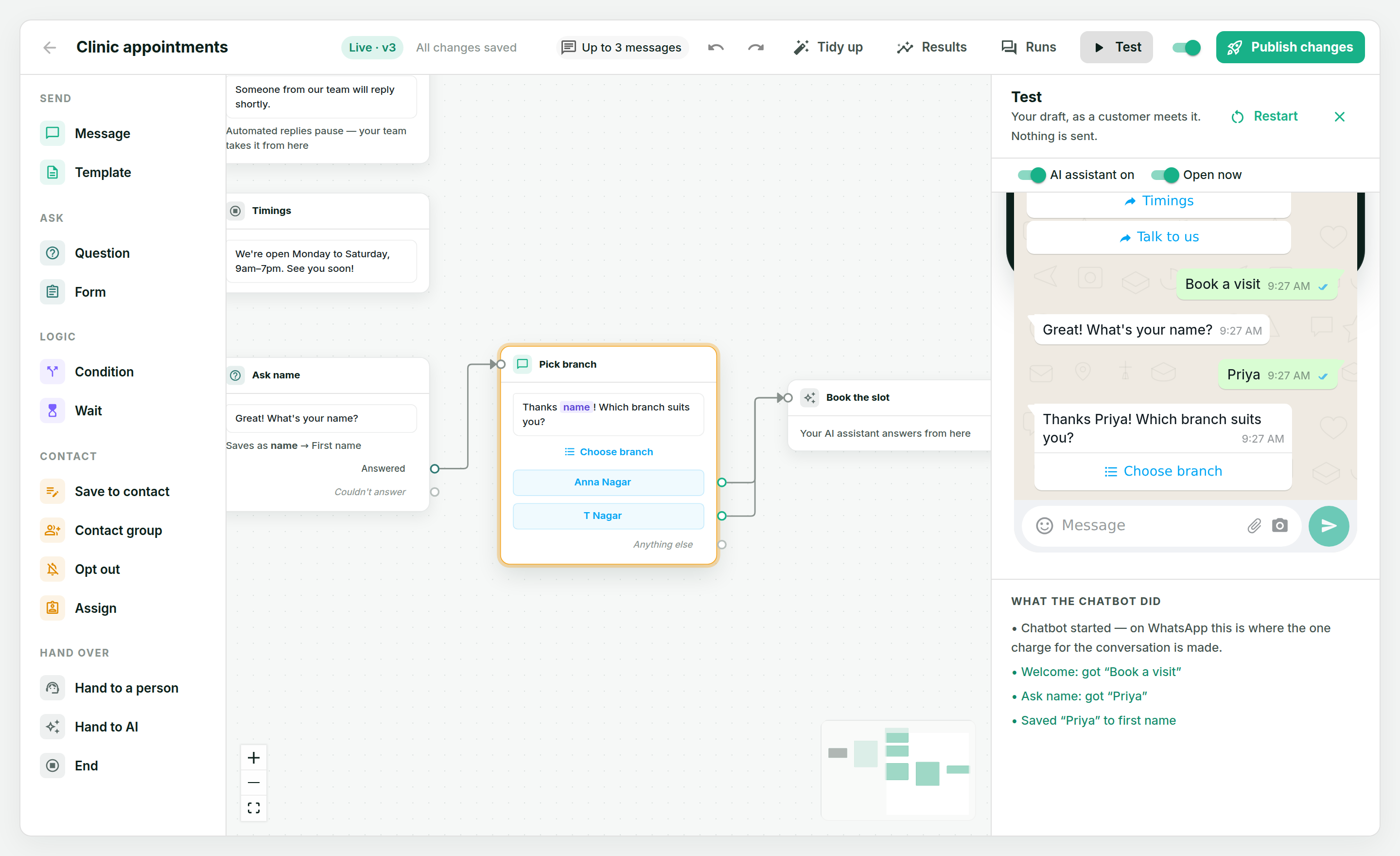
The receipt icon at the top of the test panel, with a count on it, opens What the chatbot did — what the phone can't show:
- what it saved, and where ("Saved 'Priya' to first name");
- which way a condition went;
- when a message would leave the chatbot — if the customer types something it didn't ask for, you'll see that your Instant Replies or AI assistant would answer it instead.
The two switches at the top — Support assistant on and Business open — let you try what happens with and without a Support assistant on the number, and inside or outside your opening hours. Restart clears the conversation and starts again.
What a test can't do
A test can't fill in a WhatsApp Flow form — the chatbot waits at the form, as it would on WhatsApp. Waits and "no reply" timers are skipped with a button instead of waited out — see Waits and follow-ups.
Publish
When it works the way you want, click Publish. Wap2b checks it first and tells you anything that would stop a customer getting through:
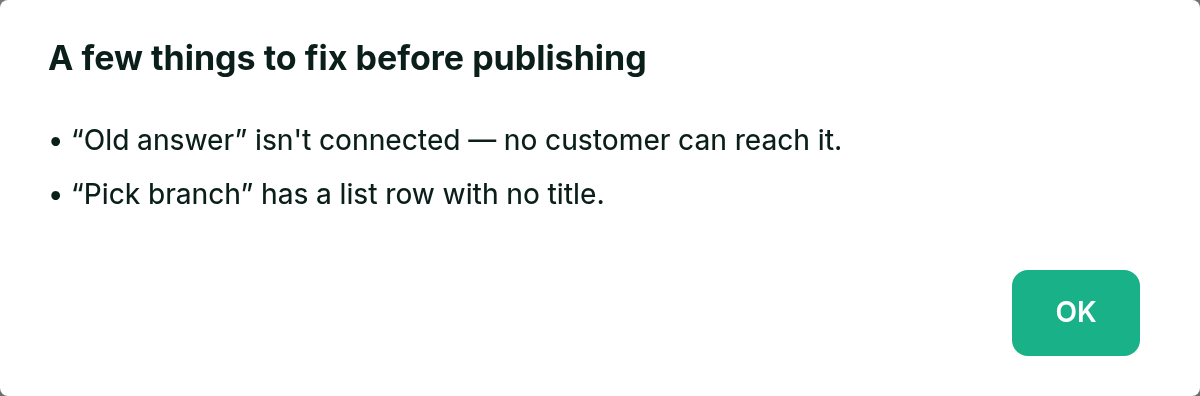
It checks, among other things, that:
- every step can be reached from the start;
- nothing loops forever without waiting for the customer;
- buttons and list options have labels, and stay within WhatsApp's limits;
- the templates, forms, groups, contact fields and team members it uses still exist — and templates are still approved.
Sometimes Publish succeeds with a note instead — for example, a chatbot that hands to your AI assistant on a number with no assistant switched on, or a number with Instant Replies switched on, which a live chatbot now answers before. It's your call; the note is there so you know.
Versions
Every time you publish, customers get a new version — shown as Live v3 under the chatbot's name. You can keep editing afterwards: your changes are a draft until you press Publish changes.
A customer who is partway through a run when you publish moves to the new version if the step they're on is still there — a reworded message, say, or a menu with an option added. If you deleted or changed that step, they finish on the version they started with, so an edit never strands anyone. Publish tells you which happened. Testing in the same chat? Type stop to start again on the new version.
One chatbot answers at a time
A number can hold up to 10 chatbots, but only one of them answers customers. Publishing a chatbot — or switching one on from the Chatbots page — switches off whichever was live, and tells you which one. Anyone partway through the old one finishes at their next message.
Switch it off
The switch on the Live chip under the chatbot's name, or on its card on the Chatbots page, turns a chatbot off without deleting it. While it's off it starts no new runs, and anyone partway through leaves it at their next message — which is answered as if the chatbot weren't there: by your Instant Replies or your AI assistant, if you have them.