
Waits, follow-ups and the 24-hour window
A chatbot doesn't have to answer straight away. It can pause — "send the brochure, wait a day, ask if they have questions" — and it can stop waiting for someone who has gone quiet — "if they haven't replied in 2 hours, remind them".
Pause with a Wait step
Add a Wait step (under Logic) and choose how long: minutes, hours or days, up to 30 days. When the time is up, the chatbot carries on to the next step.
A Wait is a fixed pause. If the customer writes to you during it, your Instant Replies or AI assistant answers them, and the chatbot still carries on when the time is up.
Follow up when nobody replies
Any step that waits for the customer — a message with buttons or a list, a question, a form — can stop waiting after a while. Open the step, find If they don't reply, and choose Give up after… and a time, up to 7 days.
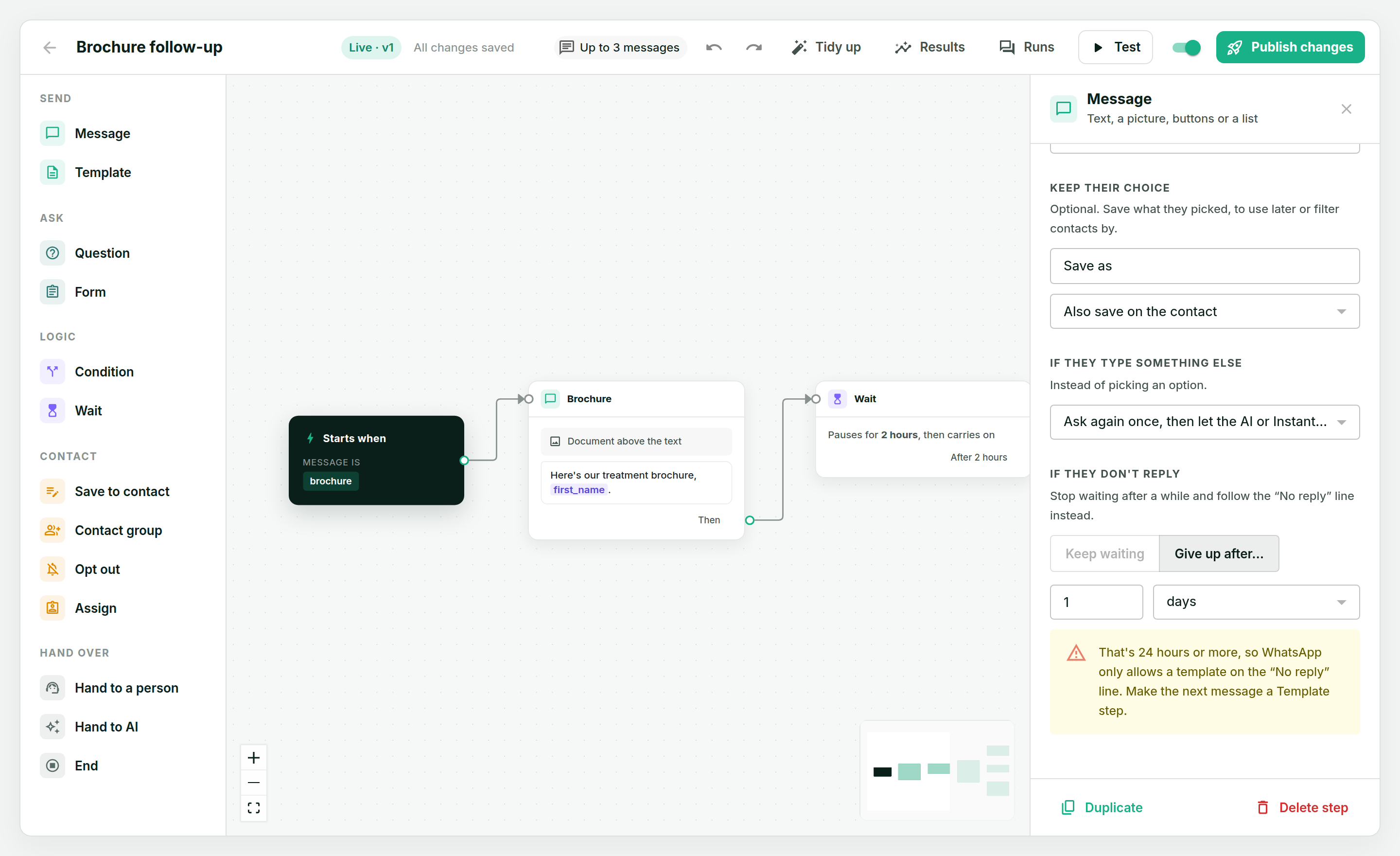
If the customer answers in time, the chatbot carries on as normal and the timer is forgotten. If they don't, it follows the No reply line. With nothing connected to that line, the chatbot simply ends — it doesn't wait on a question nobody is going to answer.
The 24-hour rule
WhatsApp lets a business send ordinary messages only within 24 hours of the customer's last message. After that, the only thing you can send is an approved template.
So a pause of a day or more has to lead to a Template step:
- When you set it, the step warns you — the yellow note in the picture above.
- When you publish, Wap2b refuses a long pause that leads straight into an ordinary message.
- When the chatbot wakes up, it checks again — two shorter waits can add up to more than a day. If the window has closed, a template still goes out, but an ordinary message isn't sent: the chatbot ends there instead of trying to send something WhatsApp would reject.
Testing a wait
In Test, a waiting chatbot shows a Skip ahead button that jumps to the moment the timer would go off. The test keeps its own clock, so skipping past 24 hours meets the same template rule a real customer would.